


| 360 + images |
only images |
only one 360 | two 360 or more |
only one image | one 360 with product tour | no 360 no images |
only videos |
A common situation is that the images in mouseover zoom have to be changed,
e.g. depending on color / variants selection of an article.
With jQuery.mouseOverZoomInit.replaceImages you can easily change images and / or 360° / videos objects...
Click on the text links below the circles to see which code is executed when you click on them.
But of course if you use one of our e-commerce modules you do not have to care about this all.
This is just in case you want to integrate this AJAX-ZOOM extension somewhere manually.
| New: "axZmMode" option | |
|---|---|
| - enable - disable | |
| Enabling "axZmMode" option will let the mouseover extension act as most other AJAX-ZOOM examples: the AJAX-ZOOM player is displayed directly inline. Users can zoom in with mouse wheel / pinch zoom without clicking on mouseover image. Accordingly, the mouseover / preview images are not loading. This option were added within this extension primary because of AJAX-ZOOM mouseover extension being already implemented into several e-commerce plugins / modules and it is simply convenient if you want to display AZ like this. |
| Some other AJAX-ZOOM settings |
|---|
|
Enable monitor size fullscreen:
- enable
- disable
|
|
Disable scroll animation:
- enable
- disable
|
|
Max zoom on click:
- enable
- disable
|
|
SpinTo effect:
For 360° / 3D "Product Tour" (on ajax-zoom.com click on the bag)
|
| This will change "ajaxZoomOpenMode" option when "axZmMode" is not enabled | |
|---|---|
| Open AJAX-ZOOM at fullscreen mode | |
| Open AJAX-ZOOM in responsive "Fancybox" | |
| Some mouseover settings |
|---|
|
Tint filter:
|
|
Mouseover Zoom:
- enabled
- disabled
|
|
Inner Zoom:
- enabled
- disabled
|
|
Slider effect:
|
|
Prev, next arrows:
- enabled
- disabled
|






Please be aware, that the e-commerce modules listed above are not needed to use this example. You can implement it manually, wherever.
This interactive and at the same time guided 360° "Product Tour" is a very user friendly way to present highlights of any product. Thanks to our crop editor such a product tour is very easy and fast to configure. For a trained administrator the process will take less than a minute. Starting with "Prestashop" module, we will update all other ecommerce systems with backend integration for optionally configuring such a product tour... (in case we do not have a module for your system be aware that internally this crop editor can be put into "cms mode" and connected over a controller to any other system without modifications)
With the help of our hotspot editor you can create multiple hotspots or rectangle image areas, setup several click / mouseover actions for them e.g. links, tooltips, popup lightboxes or bind your own JavaScript functions including AJAX-ZOOM API. The produced JSON type of result for the hotspot configuration can be passed to this mouseover extension manually, however same as with the "Product Tour" the "Hotspot Editor" is integrated into most AJAX-ZOOM ecommerce plugins so you do not have to take care about transfering data anywere but get creative right away.
AJAX-ZOOM works in all modern browsers but is also able to work in legacy IE 7 and IE 8 for the most features. On mobile touch devices AJAX-ZOOM supports pinch-zoom, double tap and two finger pan. On Windows devices, which have a mouse control and touchscreen, AJAX-ZOOM works great as well.


Prior to Ver. 4.0 of this AJAX-ZOOM mousehover zoom extension it was responsive for the flyout window only. The actual "preview image" was not really responsive. In this new extension everything is absolutely responsive now. A positive side effect caused by the added responsiveness is that a single image can be used as "preview image" - the image which is hovered and the big "flyout image". But this is optional and not necessarily needed.
It has been tested in various Browsers including IE7. Plays nicely with Bootstrap. If you discover any bugs please do not hesitate to report. We will fix them with highest priority.
The integrated 360°/3D object spin support is optional! You do not need to have a 360° for every product. However you can put more than one 360° into the gallery.
The extension supports passing hotspots to the player. Hotspots can be made with example33.php. This hotspot editor is integrated directly into the backend of the most AJAX-ZOOM ecommerce plugins.
The extension supports passing JSON code produces by the special editor which is also integrated into backend of most AJAX-ZOOM ecommerce plugins. The "Product Tour" can be combined with hotspots for the same 360.
Ver. 5 of this mouseover zoom extension supports videos as well. Youtube, Vimeo and Dailymotion are lastly integrated over iframe. HTML5 (mp4) videos over video tag with options "videojs" player support. Great for SEO over videos. Vimeo can be used to stream mp4 as paid service.
In Ver. 4.1 of this extension there is a new feature for "touch slide" images in order to switch between them. It can be enabled for all devices by setting "noMouseOverZoom" || "noMouseOverZoomTouch" options to true. Starting from Ver. 5 the new "mouseOverZoomHybrid" option together with "noMouseOverZoomTouch" are enabled on default. Thus the user can slide the image with the mouse and see mouseover effect as well at the same time. For touch devices / events mouseover is disabled but could be enabled over options.
Touch slide is also enabled for AJAX-ZOOM in fullscreen view or within responsive fancybox.
The sliding thumbnail gallery below the mousehover image is optional. It can be replaced or disabled so you have only thumbs floating somewhere else. On default we use jQuery.axZmThumbSlider which is one of AJAX-ZOOM extensions. It is highly configurable, skinable, responsive and touch friendly. You can configure it to be displayed horizontally, vertically or even depending on screen resolution / other factors.
The version packaged with AJAX-ZOOM is 1.3.4. It was modified to work with AJAX-ZOOM. However everything will also work with Fancybox 2.x which is available separately.
In most cases, the answer is lastly nagative.
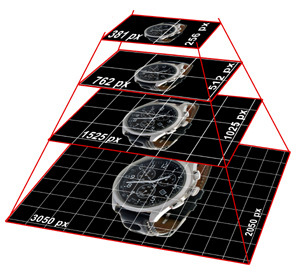
On default only the high resolution "master images" (source images) are needed to be defined (see "images" object / array in the example code below). This "images" object is basically the only thing which needs to be replaced / set dynamically by your application.
All thumbnails and flyout view images are instantly generated by AJAX-ZOOM "image server" which is located at your place (server). The size of the flyout image can be set to e.g. 1200x1200px, which are at most 1.44 Mio. pixels. For a 21 megapixels master image made by e.g. Canon EOS 5D these are around 5-7% of the actual resolution and size.
Alternatively to AJAX-ZOOM PHP based "image server" the paths to these flyout "preview" images can be hardset (see "images" option below) to point to some static (already scaled) images.
By clicking on the lens your users can explore the details of the entire big image with AJAX-ZOOM, which
utilizes image tiles technology (simmilar to google maps where the view "gets sharp" when you zoom in),
so the big master image never loads into browsers cache;
it can be even protected from direct access over http e.g. with .htaccess - (simply put
.htaccess file with this code and nothing else into the top directory with your master images: deny from all).
Same as with thumbnails all image tiles can be generated instantly on-the-fly or pregenerated with AJAX-ZOOM special batch tool...
The width of the container in the left column of this responsive page layout is set to 32% of the window width. Consequently the child elements in the left column are 100% width and do change their width instantly depending on window width. So does AJAX-ZOOM mouseover zoom extension.
But what about the height of this mouseover zoom? It can be set to a fixed pixel value; if your responsive layout takes into account the height it can also be set to some variable value; but most likely you would just want to preserve a certain proportion of the height depending on width. In this case just set the new "heightRatio" option e.g. to 1.0 and the height of mouseover will be instantly adjusted making the mouseover square. If your images are mostly portrait orientated (common for fashion retailers), then you could set "heightRatio" value to e.g. 1.5; setting "heightRatio" to 'auto' will set the proportion instantly to the proportion of the actual image. Be aware though that if proportion of the images in the gallery is different the height will change on image switching, which might be unwanted behavior.
Setting "heightRatio" option may result in that the height of the mouseover zoom is bigger than window height and the image is not fully visible. To prevent this you can limit the calculated height with the "maxSizePrc" option. The value of 1.0 would limit the height to 100% of window height; a value of 0.8 to 80% of window height; you can also define two values, e.g. '1.0|-120' which would be window height minus 120px.
This responsive example page layout "collapses" the three column layout
when the width of the browser window is less than a certain amount of pixels.
This is done over CSS "media queries" and max-width condition which is common in modern templates,
e.g. @media only screen and (max-width: 960px){...}
With the new options called "heightMaxWidthRatio" and "widthMaxHeightRatio" you can take account of these changes
and adjust e.g. "heightRatio" depending on max-width, e.g. heightMaxWidthRatio: ["960|0.8", "700|0.7"].
The above basically means that below 960px of window width the "heightRatio" option turns into 0.8 and below 700px
"heightRatio" turns into 0.7;
The "flyout" window with bigger image is set to cover the middle column div (the text over gray background) - "zoomWidth" and "zoomHeight" options of "mouseOverZoomParam" are set to the selector '#middleSideContent' which is simply the id of the middle column. In case the browsers window is less than 960px the design of this example page changes in the way that the width of mouse over image is 100%; consequently there is no room for the flyout window, so this mousehover changes the "position" option of "mouseOverZoomParam" from 'right' to 'inside' (inner zoom).
Notes: this responsive page layout is not well elaborated and is only meant to show how the new responsiveness of AJAX-ZOOM mouseover zoom extension does work. Resize the browser window to see the effect.